Hardcoded vs soft subtitles: how to tell which you have
Soft subtitles are a separate track you can switch off. Hardcoded ones are pixels in the picture. Four quick checks to tell them apart, and what to do next.
EraseVideo AI · Published
What is the difference between soft and hardcoded subtitles?
Soft subtitles are text stored separately from the picture. They can live in a sidecar file next to the video, usually SRT, VTT or ASS, or they can be embedded as a subtitle stream inside the container, which is common in MKV and possible in MP4. The player draws them on top of the video at playback time. Because they are data, you can turn them off, extract them or delete the stream without touching the picture.
Hardcoded subtitles, also called burned-in or open subtitles, were drawn into the frames when the video was exported. After that they are just pixels, like the sky behind them, and there is nothing separate to switch off. Social media exports and many re-uploaded clips are hardcoded.
How can you tell which kind you have?
Toggle subtitles in a player
Open the file in a desktop player such as VLC or mpv and look for a subtitle menu. If you can pick "off" or switch languages and the text disappears or changes, the subtitles are soft. If the menu is empty or turning it off changes nothing, the text is in the picture.
Watch whether the text scales with the picture
Resize the player window or switch to full screen. Soft subtitles are drawn by the player, so they stay crisp and may resize differently from the video. Hardcoded text scales exactly like the rest of the frame and gets blocky with it on low-resolution video.
Take a screenshot or export a frame
Many players leave soft subtitles out of a snapshot, and an editor's frame export will not include them unless you add them. If the text is in every exported frame, it is burned in. Some screen-capture tools grab the overlay too, so pair this with another check.
Look for subtitle streams with a media info tool
The most reliable check is to read the file itself. Tools like MediaInfo, or ffprobe from FFmpeg, list every stream in the container. A soft subtitle track shows up as a separate "Text" or "Subtitle" stream with a format such as SRT, ASS or mov_text. If the only streams are video and audio, any subtitles you see are part of the video stream.
Also check the folder the video came in. A file with the same name and an .srt or .vtt extension next to it is a soft subtitle file.
How do you replace soft subtitles?
If the subtitles are soft, no pixel editing is needed. A typical re-subbing workflow:
- Turn the old track off in your editor, or delete the subtitle stream with a remuxing tool (MKVToolNix for MKV, FFmpeg for most containers).
- If you are translating, extract the old track first and use it as a timing template. Editors such as Subtitle Edit or Aegisub let you replace the text and keep the timings.
- Add the new track as a sidecar file, embed it as a new stream, or burn it in during export if the platform you are posting to needs that.
What are the options for hardcoded subtitles?
Once text is in the pixels, something has to cut, cover or rebuild that part of the frame.
Crop
If the subtitles sit in a band at the bottom, you can crop that band off. It is fast and leaves no artefacts, but you lose part of the picture and change the aspect ratio, or scale up and lose sharpness. It does not work when text sits mid-frame or moves.
Blur or box over
You can blur the subtitle area or put a solid bar over it. It is quick in any editor and a bar makes a clean base for new subtitles. The downside is that viewers can see something was hidden, and a blur over moving footage often draws more attention than the text did.
Inpainting
Inpainting rebuilds what was behind the letters using the surrounding pixels and nearby frames, so the area looks like ordinary picture again. It is the only option that keeps the full frame without a visible patch, but it takes the most compute and results depend on the footage. Plain or slow backgrounds come back well. Fast motion over background that is never revealed can smear, and faces or hair under the text can look soft. It also cannot recover what was never visible: if the text covers the same detail for the whole clip, the fill is a plausible guess, not the original.
How EraseVideo AI handles hardcoded subtitles
Our subtitle remover takes the inpainting route. After you upload an MP4, MOV or WebM file (up to 10 minutes and 800 MB), the detector proposes a box for each line of text. Nothing is removed unless you tick it, so you can keep a sign in the scene or a title you still want. Subtitle boxes default to text mode, which rebuilds only the letters and their outline.
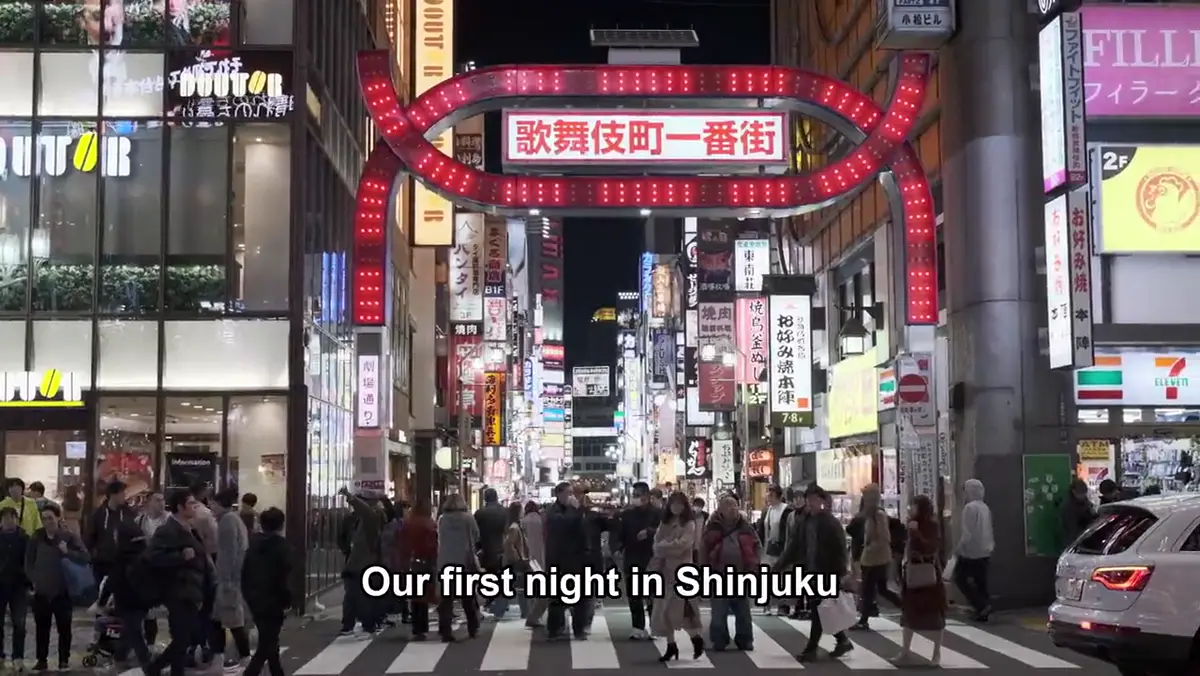
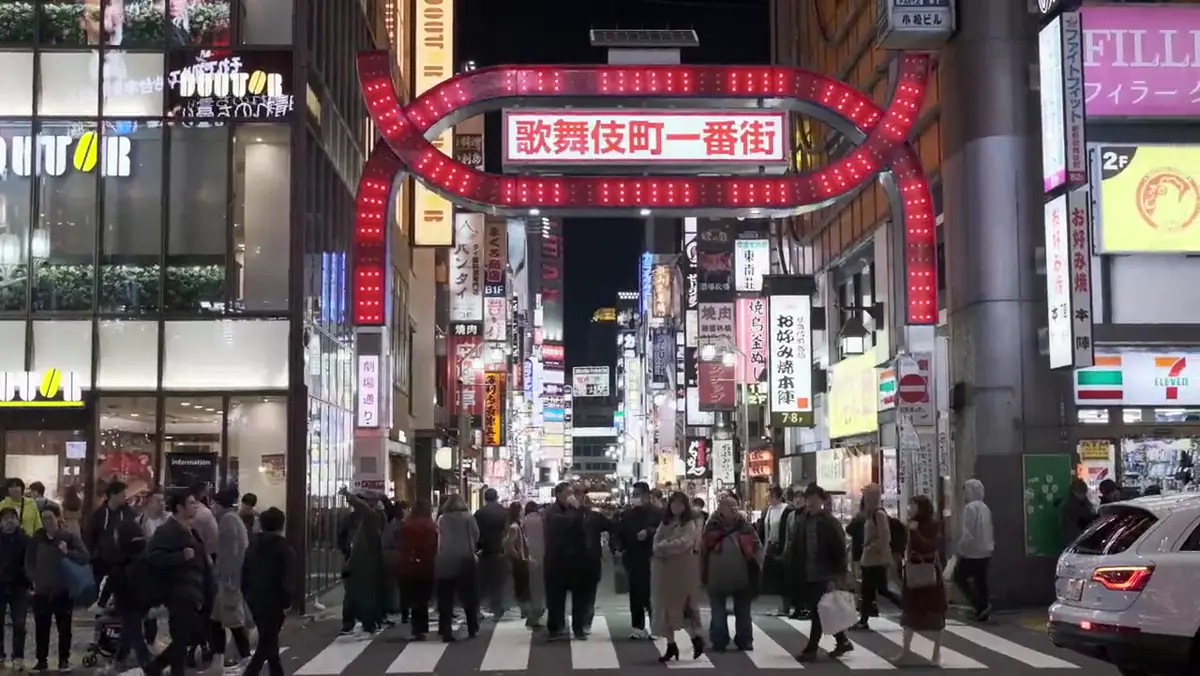
You can check one frame for free without an account. Rendering needs an account: Standard rebuilds at 480p for 1 credit per second, and HD rebuilds at 720p for 3 credits per second, which is worth it when captions cross faces or fine detail. The rebuilt area is pasted back at your original resolution, and the audio is kept. New accounts get 20 free credits, and failed renders are refunded automatically. See pricing for credit packs.
If your subtitles turned out to be soft, you do not need us. Switch them off or remove the stream and keep your original file untouched.